ここではGoogle Maps API V3 住所からジオコーディングする方法を解説しています。
※2018年7月16日よりAPIキーが必須で有料になりました。
Google Cloud Console にログインしてMaps JavaScript APIとGeocoding APIのキーを発行してください。
https://cloud.google.com/
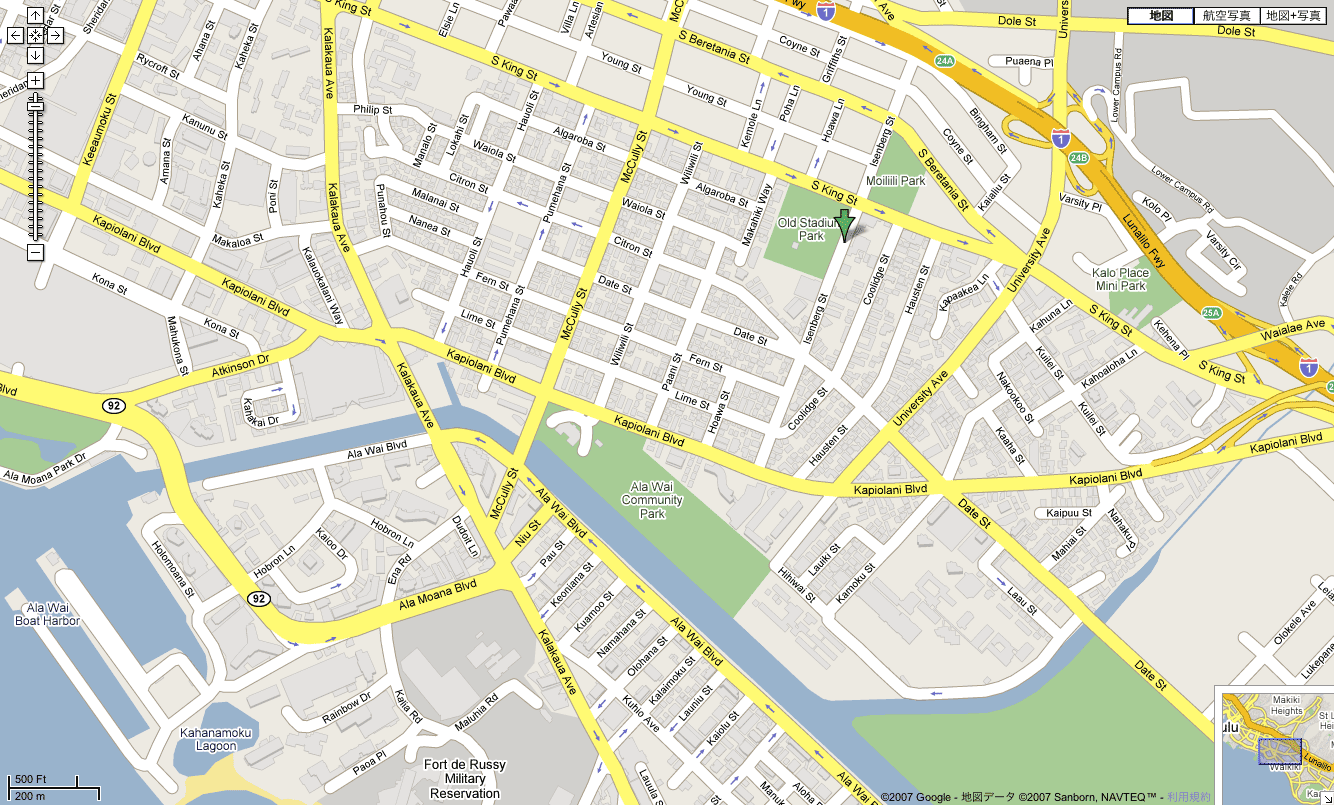
デモはこちら
https://office-goto.info/demo/geocoding/
サンプルソース
google.maps.event.addDomListener(window, 'load', function() {
    var latlng = new google.maps.LatLng(35.671277, 139.718489);
    var options = {
        zoom: 16,
        center: latlng,
        mapTypeId: google.maps.MapTypeId.ROADMAP
    };
    var map = new google.maps.Map(document.getElementById("gmap"), options);

    // InfoWindowオブジェクト
    var infowindow = new google.maps.InfoWindow();

    // Markerオブジェクト
    var marker = new google.maps.Marker({
        position: latlng,
        map: map
    });

    // マーカクリック時
    google.maps.event.addListener(marker, 'click', function (e) {
        infowindow.setContent('Hello World');
        infowindow.open(map, marker);
    });

    $("input[type=button]").click(function () {
        var geocoder = new google.maps.Geocoder();
        var address = $("#address").val();
        geocoder.geocode( { 'address': address}, function(results, status) {
            var location = results[0].geometry.location;
            if (status == google.maps.GeocoderStatus.OK) {
                // マップのセンターを入力された住所に設定
                map.setCenter(location);
                // 入力された住所にMarker設定
                var marker = new google.maps.Marker({
                    map: map,
                    position: location
                });
                // 入力された住所にInfoWindow
                google.maps.event.addListener(marker, 'click', function (e) {
                    infowindow.setContent("Lat:" + String(location.lat()) + "<br>Lng:" + String(location.lng()));
                    infowindow.open(map, marker);
                });
            }
            else {
                alert("Geocode was not successful for the following reason: " + status);
            }
        });
    });
});
サンプルソースの例ではTextフィールドに住所を入力して入力された住所から緯度経度を取得し、マップを移動してMarkerとInfoWindowを設定しています。