ここではGoogle Maps API V3について解説していきます。
※2018年7月16日よりAPIキーが必須で有料になりました。
Google Cloud Console にログインしてMaps JavaScript APIとGeocoding APIのキーを発行してください。
https://cloud.google.com/
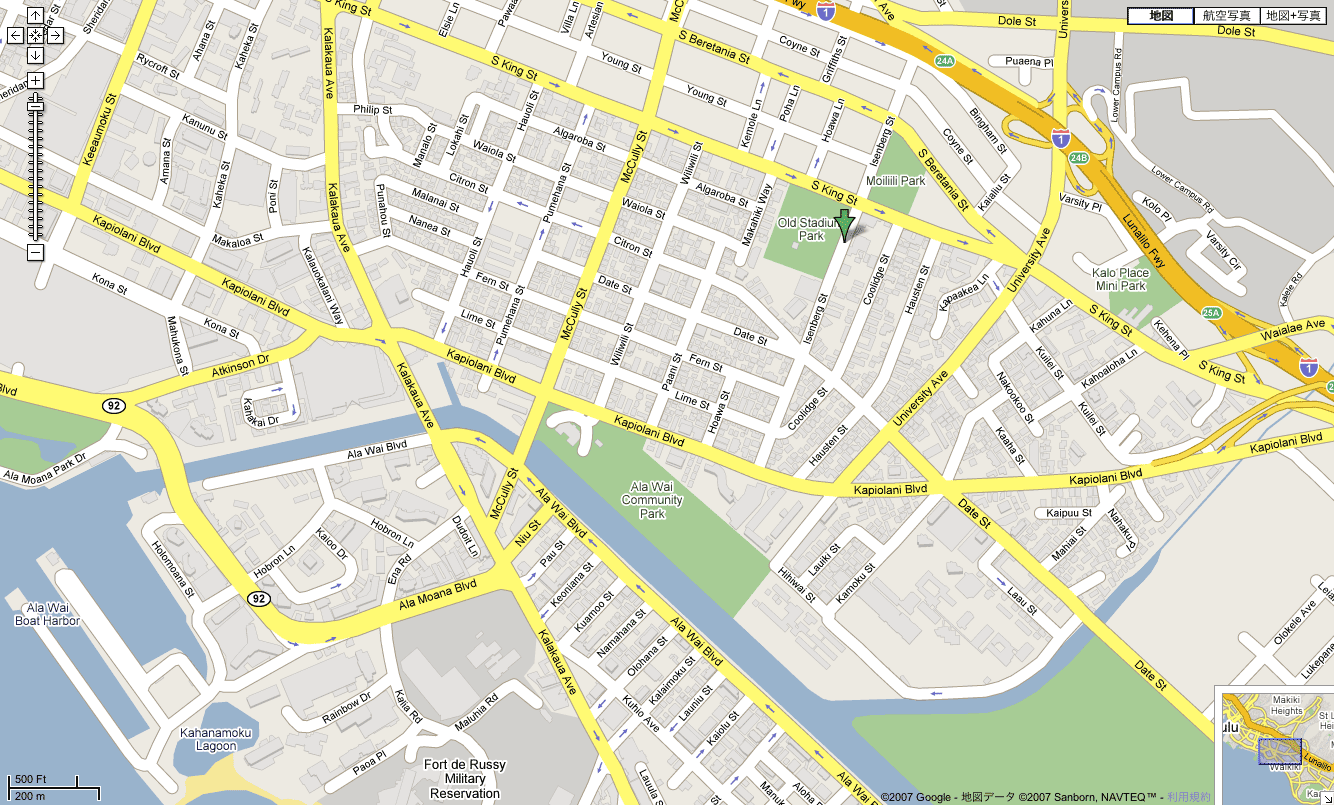
デモはこちら
https://office-goto.info/demo/map/
headで読み込み
<script type="text/javascript" src="http://maps.google.com/maps/api/js?sensor=false"></script>
GPS機能を使う場合sensor=trueに
GPS機能を使わない場合はsensor=falseにしてください。
html
<div id="gmap"></div>
地図を表示させるためターゲット指定してください。
サンプルソース
google.maps.event.addDomListener(window, 'load', function() {
    var latlng = new google.maps.LatLng(35.671277, 139.718489);
    var options = {
        zoom: 16,
        center: latlng,
        mapTypeId: google.maps.MapTypeId.ROADMAP
    };
    var map = new google.maps.Map(document.getElementById("gmap"), options);

    // InfoWindowオブジェクト
    var infowindow = new google.maps.InfoWindow();

    // マーカーオブジェクト
    var marker = new google.maps.Marker({
        position: latlng,
        map: map
    });

    // マーカクーリック時
    google.maps.event.addListener(marker, 'click', function (e) {
        infowindow.setContent('Hello World');
        infowindow.open(map, marker);
    });

    google.maps.event.addListener(map, 'drag', dispLatLng);
    function dispLatLng(){
        var center = map.getCenter();
        $('#centerLat').attr('value', center.lat());
        $('#centerLng').attr('value', center.lng());
    }
});
解説
new google.maps.LatLng(35.671277, 139.718489); (2行目)
緯度経度の取得です。
var options = {} (3~7行目)
ズームレベルや地図の中心、表示タイプなどを指定します。
new google.maps.Map(document.getElementById(“gmap”), options); (8行目)
idとoptionsを指定してMapオブジェクトを作成しています。
new google.maps.InfoWindow(); (11行目)
マーカークリックでウィンドウを出すためオブジェクトを作成しています。
new google.maps.Marker({}); (14行目)
マーカーを置く位置を緯度経度で指定してMapオブジェクトに追加します。
google.maps.event.addListener({}); (20行目)
マーカーをクリックすることでHello Worldと出力させています。
addListener(map, ‘drag’, dispLatLng); (25行目)
このように定義すると独自で設定したメソッドが利用できます。
例では地図の中心の緯度経度を隠しフィールドに持たせています。